Creating links and buttons
Adding a button to content on your website can be a powerful way of drawing an action from a user. A well placed button can prompt a user to enter the registration purchase process, read more and get excited about speakers or begin subitting a paper. This article shows you the simple steps to creating links and buttons.
Creating a link
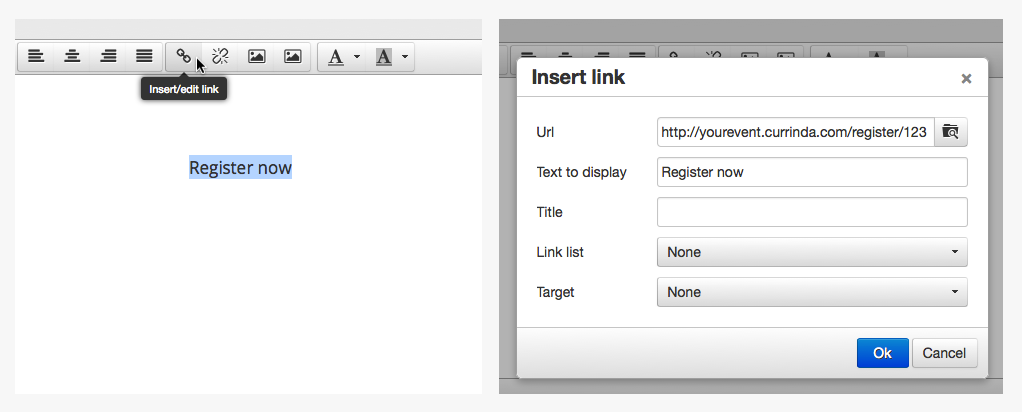
A link can be created in any text editor by:
- Writing the content of your link.
- Highlighting the text and clicking the 'link' button (looks like a chain link).
- Enter the URL that you would like your link to use and hit OK.
- Save the page.
You have now added a hyperlink to that URL into your content, *now for some style***.
Styling a button
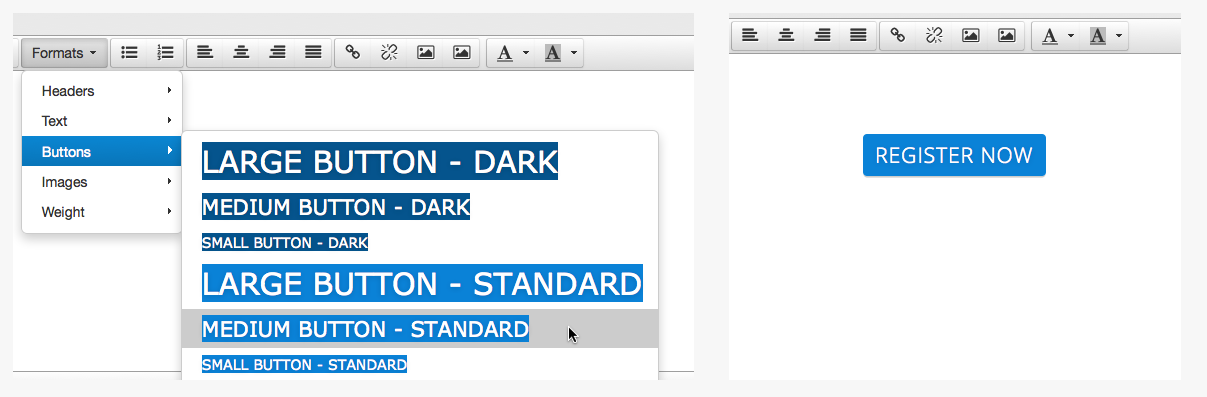
The theme that you have selected for your website has a variety of button styles available within it. To view the available styles:
- Highlight the link that you created above.
- Click the 'Formats' dropdown and hover over the 'Buttons' item.
- Select one of the button styles available.
- Save the page.
...And now you have a button linked to your URL and is nicely styled to match your theme!