Admin — Adding an Abstract
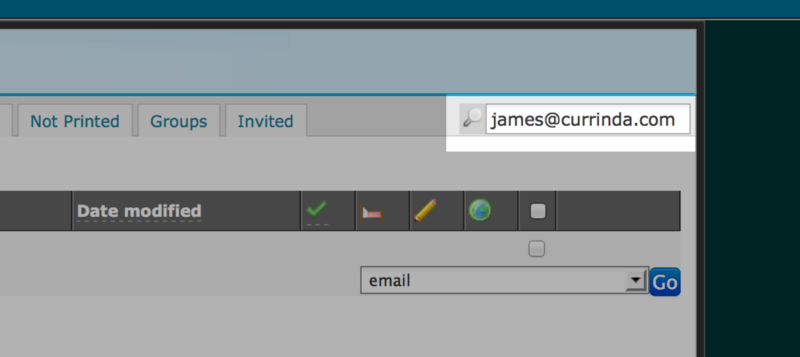
Currinda allows an event's Administrator/s to add an abstract manually via the backend of Currinda. Adding an abstract by this method should start with a search for the submitter/delegate using their email address. Note that ALL abstract submitters DO require a valid Currinda profile, but DON'T need an event registration to submit.
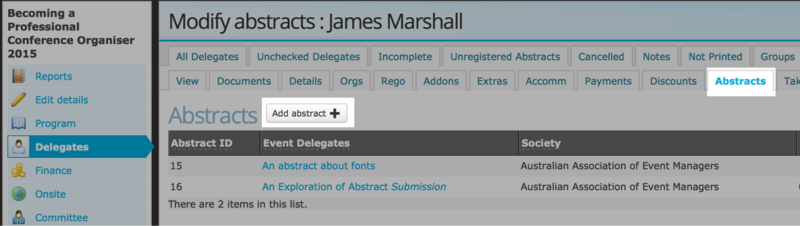
In the submitter's profile, select the Abstracts tab and click the 'Add Abstracts+' button. This process must be completed if you wish to enter the abstract as a confirmed or invited speaker, as all information is necessary for display in the smartphone app.
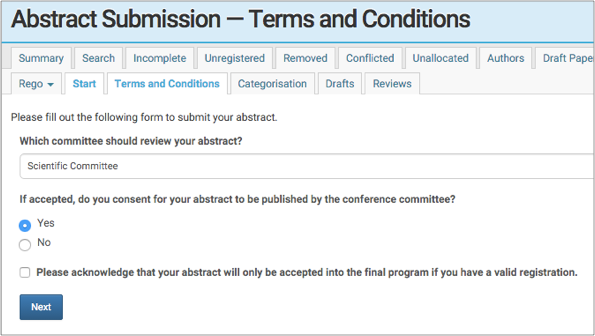
You are now in the abstract submission process. The first page is the Terms and Conditions. Select the committee who will review the abstract and accept the T&Cs.
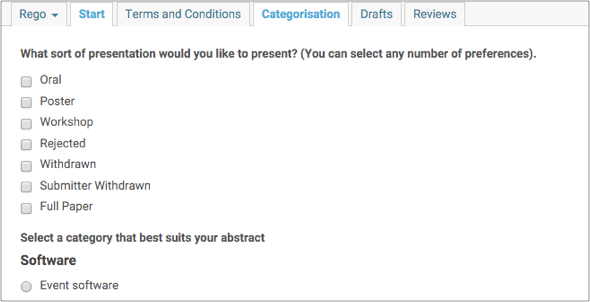
Next page is the Categorisation page. This specifies the presenter's method of presentation (Oral, Poster, etc) and which 'category' or 'track' they would like to present and be reviewed in.
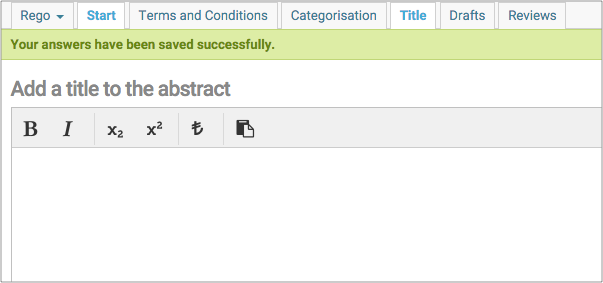
Next page, add the Title of the Abstract. This will be displayed throughout the program and smartphone app. Click the 'Save Title' button to save and proceed to the next page.
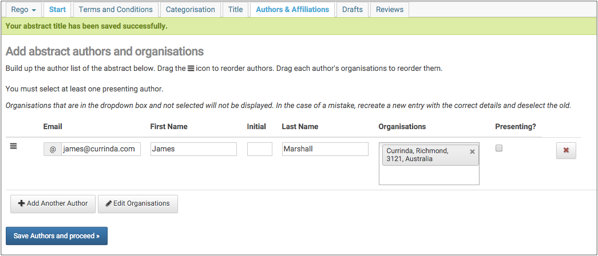
Next page is the Authors & Affiliates. This page allows you to add any number of authors and their organisations, funders and affiliations. Click the 'Save Authors and proceed' button to save and proceed to the next page.
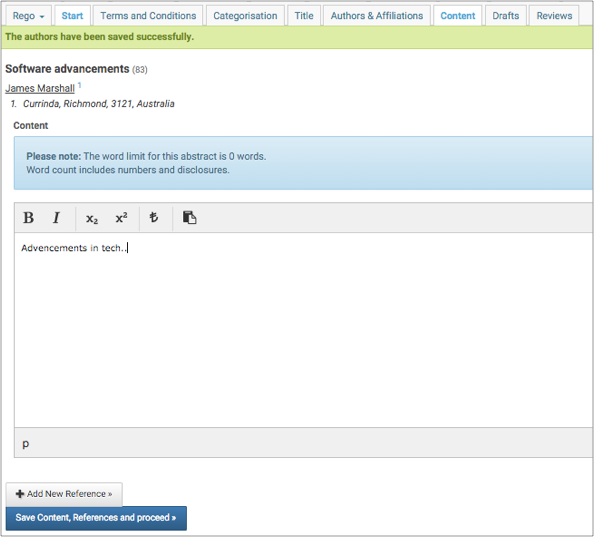
Next page is the abstract Content. Add the full abstract into the text box. A limited amount of formatting is allowed and any number of references can be added to the abstract. Click the 'Save Authors and proceed' button to save and proceed to the next page.
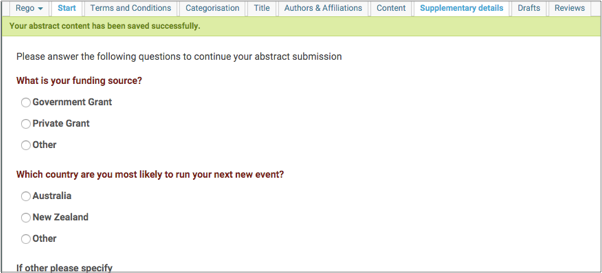
Next page is Supplementary details, where any extra questions that have been asked in the setup are displayed. Click the 'Continue' button to save and proceed to the next page.
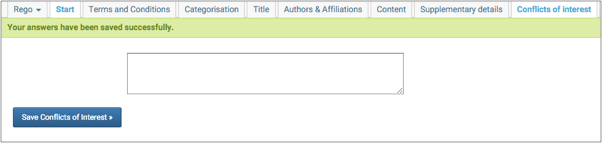
You are then asked to disclose any Conflicts of Interest the submitter may have. If there are no conflicts, click the 'Save Conflicts of Interest' button to save and proceed to the next page.
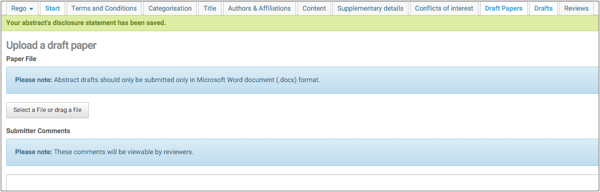
If a draft paper is required, the next page will ask you to upload it. If it's not required, you'll be taken to the preview page. Click the 'Continue' button to save and proceed to the final stage of adding an abstract.
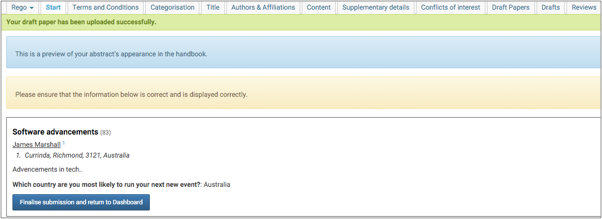
The final page is a preview of how the abstract will appear. This is used to check for any display errors or typos and to make sure all of the authors and extras have been filled out correctly. You should then click the 'Finalise submission and return to Dashboard' button.